GHL Workflows Not Triggering? How to Fix It Fast
Few experiences match the operational frustration of launching a marketing funnel, running live paid traffic, or deploying an onboarding sequence, only to realize your GoHighLevel (GHL) workflows failed silently, leaving the work ineffective and the cause unclear.
When a workflow does not trigger, leads fall through the cracks, customer acquisition costs spike, and client trust erodes rapidly. In most instances, these issues are not platform glitches; they are predictable errors embedded within your automation logic, contact configurations, or integration states.
This blueprint shows why GHL workflows fail to trigger and provides a toolkit to diagnose, debug, and bulletproof your agency’s backend automation engine.
1. The Gatekeepers of Entry: The Status and Re-Entry Matrix
Before auditing complex conditional branches or API payloads, verify the structural permission rules of your workflow. If the settings are misconfigured, the platform will block contacts from entering the automation loop.
Draft vs. Published State
It may seem elementary, but in fast-paced agency environments, a newly built or updated workflow is often left in Draft mode. GHL will ignore inbound event signals unless the master switch is explicitly flipped to Published. If a primary workflow attempts to push a contact into a secondary workflow via the Add to Workflow action while the secondary workflow is in Draft mode, the execution log will flag it as Skipped.
The Silent Killer: “Allow Re-entry” Turned Off
By default, GoHighLevel creates new workflows with the Allow Re-entry toggle turned off. This prevents duplicate automated text blasts or emails, but it also means live tests and recurring behaviors may fail to fire.
[Event Trigger Fired] ---> [Check Workflow Settings]|
+--------------+--------------+
| |
[Allow Re-entry: ON] [Allow Re-entry: OFF]
| |
Is contact in the workflow? Has contact EVER been here?
• Yes -> Blocked • Yes -> BLOCKED SILENTLY
• No -> ENTERS WORKFLOW • No -> Enters Workflow
If a lead submits a form, exits the workflow, and later submits that same form to request a new resource, GHL will catch the incoming webhook or event, check the contact’s historical log, see that they previously occupied that workflow, and silently bar them from entering again.
Navigate to Automation > Workflows, open your target workflow, click the Settings tab at the top, and evaluate your re-entry parameters. If the event is a recurring behavior (e.g., booking an appointment, submitting an order form, or updating a pipeline stage), keep Allow Re-entry active so the workflow can run again.
2. Granular Trigger Filter Mismatches
A common point of failure occurs when a trigger condition is defined too broadly or restricted with mismatched, hyperspecific filters. If the data payload from a system component does not exactly match your filter parameters, the trigger ignores it entirely, leaving the event unhandled.
[ INCOMING PAYLOAD ]{ form_id: "1023", page: "/home" }
|
v
[ WORKFLOW TRIGGER SETUP ]
Form Submitted -> Filter: Form IS "Core Funnel Form"
|
+-------------+-------------+
| Exact Match? | Mismatch?
v v
[EXECUTION SUCCESS] [SILENT FAILURE]
A contact enrolled in the GHL Workflow ignores the event.
The “Form Submitted” Mismatch
If your workflow trigger is set to Form Submitted, but you do not attach a specific filter to define which form, any form submission across your entire sub-account will trigger this automation. Conversely, if you duplicate a funnel page or form and select the archived form version in your workflow trigger filter, a lead filling out the active page will not trigger the automation loop.
The Danger of Mixed “AND/OR” Operator Assumptions
When assigning multiple trigger blocks within a single workflow header, it is critical to understand that separate trigger blocks use OR logic. If you configure:
Trigger 1: Contact Tag Added (Tag: Lead)
Trigger 2: Form Submitted (Form: Discovery)
The workflow will fire if either event occurs independently. However, inside a single trigger block, adding multiple standard filters shifts execution to strict AND logic. If you require Form Submitted AND Tag IS Lead in the same box, the automation will fail unless both conditions are met at the exact execution timestamp.
3. Race Conditions and Synchronicity Collisions
A Race Condition occurs when two distinct system updates occur in the exact same second. The two distinct data changes race to write to the database, scrambling execution order or causing inaccurate reads of processing variables.
[ External Action: Webhook/API Upsert ]|
+---> Task A: Create/Update Contact Data (12:00:01 PM)
|
+---> Task B: Apply Tag "Nurture" (12:00:01 PM)
|
[ Database Collision: System tries to fire workflow before fields populate ]
|
v
[ SYSTEM LOGS ERROR / SKIPS ]
The Tag-Before-Contact Lifecycle Glitch
If you push external leads into GoHighLevel via an API or custom webhook using platforms like Make or Zapier, you might structure your external flow to create or update a contact, then immediately push a secondary call to add an identification tag.
If Task A (Upsert Contact) and Task B (Apply Tag) hit GHL’s servers at the exact same timestamp, the database engine may log the tag application slightly before the core custom contact fields finish saving. If your workflow trigger relies on Contact Tag Added alongside specific custom-field filters, the workflow fires, checks the contact record, finds the custom fields empty, and stops immediately.
The Execution Fix
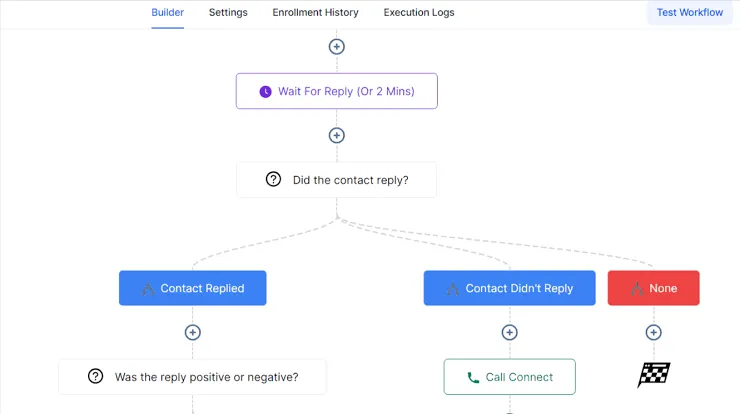
To prevent race conditions from breaking backend infrastructure, place a 1-Minute Wait Action first, directly beneath your trigger block. This brief pause helps GoHighLevel separate its initial data-writing processes from downstream conditional logic, giving the platform time to index contact tags and custom values before moving forward.
4. Global Communication DND (Do Not Disturb) and Carrier Compliance Blocks
Sometimes a contact meets your workflow trigger requirements, enters the execution sequence, but fails to execute outbound SMS, email, or WhatsApp actions. This can make it seem as though the workflow did not fire when outbound channels are blocked at the profile or structural level.
[ CONTACT ENTERS WORKFLOW ]|
[ STEP: Send SMS ]
|
+----------+----------+
| |
[DND Status: Active] [A2P 10DLC: Pending/Rejected]
| |
v v
[SYSTEM SKIPS ACTION] [CARRIER BLOCKS MESSAGE]
Log: "Contact has DND." Log: "Undelivered Error 30007"
Profile-Level DND Settings
If a contact record has a global or channel-specific DND (Do Not Disturb) flag active, GHL will skip outbound messaging components inside your workflows. Contacts can trigger DND by replying with keywords like STOP, UNSUBSCRIBE, or QUIT.
When this happens, the workflow execution log will show that the contact entered the step, but the specific step returned a status of Skipped or Failed due to active DND channels.
The Regulatory Wall: A2P 10DLC and Email Compliance
If you operate within the US or Canadian markets, structural compliance rules can stop your messages from being delivered. If your sub-account’s A2P 10DLC registration profile is in a Pending, Unregistered, or Rejected state, major telecom carriers will instantly drop your outbound automated SMS messages.
Similarly, if your LC Email sending domain lacks correct SPF, DKIM, and DMARC settings, or shows up as “Pending” in your system settings, outbound emails will be blocked at the server level or routed straight to spam folders, halting your sequence in its tracks.
5. Misconfigured Wait Actions and Specific Date Traps
The Wait action is one of the most powerful components in GHL workflows, but it is also prone to logical configuration errors. Misconfiguring a wait parameter can pause a lead indefinitely and create a silent bottleneck that mimics a failed trigger.
[ Contact Enters ] ---> [ Wait Step: Await Specific Date (e.g., Oct 15) ]|
+---------------+---------------+
| |
[ Date Is In Future ] [ Date Has Passed ]
| |
Pauses until the target date. What is Fallback Behavior?
|
+---------------------------------+---------------------------------+
| |
[ Config: Continue Next Action ] [ Config: Exit Automation ]
| |
Proceeds immediately down the path. Drops contact out of the loop instantly.
The “Specific Date” Fallback Pitfall
When using a Wait step configured for a Specific Date and Time or an Upcoming Appointment Time, you must define your fallback behavior for scenarios in which the target date has already passed.
If a user signs up for an event after its calendar date has passed and your wait step lacks an explicit “If date has passed, continue to next step” rule, the platform will immediately drop the contact from the automation loop.
The “Advance Window” Execution Loop
If you restrict your Wait actions to an advanced window (e.g., allowing execution only between Monday and Friday from 9:00 AM to 5:00 PM), any contact hitting that step on a Friday evening at 5:01 PM will pause completely. They will sit inside that specific step until Monday morning at 9:00 AM. During this window, checking the live conversation feed or contact history can make it look like your workflow has stalled out, when it is simply holding the lead in a queue.
6. Token Expirations and Disconnected Integrations
GoHighLevel relies heavily on secure API integrations and OAuth tokens to exchange data with external services such as Google Calendar, Zoom, Stripe, and Meta. These tokens are not permanent; they can drop or expire without warning.
[ Workflow Event Fired ] ---> [ Action Step: Add to Google Calendar ]|
+----------+----------+
| |
[ Token: Active ] [ Token: EXPIRED/BROKEN ]
| |
v v
[ Sync Successful ] [ SILENT REJECTION ]
Execution logs stop dead.
If your workflow trigger depends on an external application event (such as an appointment booked inside a synced Google Calendar or an order processed through a native Stripe payment form), a broken connection will stop data from reaching GHL’s automation processing layer.
The Diagnostic Step: Go to Settings > Integrations inside your sub-account. If you see a button labeled “Connect” instead of “Disconnect,” or if a warning badge is displayed, your connection has dropped. Unlink the service entirely, clear your local browser cookies and cache, and re-authenticate the connection to restore data access.
7. The Step-by-Step System Forensic Audit Workflow
When an automation fails to run, don’t guess or rebuild your workflows from scratch. Use this structured, systematic troubleshooting process to find the exact point of failure.
Step 1: Query the Global Execution Logs
Never assume you know where a workflow failed. Your first step should always be to consult the platform’s execution logs.
Open the workflow and click the Logs or History tab at the top of the builder canvas.
Use the filter bar to search for the specific contact’s name or unique ID.
If the contact is present in the history log but marked as Finished or Skipped, read the specific error message provided by the system.
If the contact is completely absent from the history log, it means the platform never recognized the trigger event.
Step 2: Cross-Reference the Individual Contact Timeline
If the global workflow logs show nothing, inspect things from the perspective of the individual contact’s record.
Locate the specific contact under Contacts.
Scroll to the right side of the screen to find the Activity Timeline and Automations tab.
Look for the exact time your trigger event was supposed to occur (e.g., by checking a form submission log or an inbound webhook timestamp).
If the activity exists but no automation is listed under the active or past workflow sections, you have a filter mismatch or a duplicate contact restriction rule blocking entry.
Step 3: Isolate and Run a Fresh Test Execution
To confirm whether your fix worked, always run a live test using a brand-new contact profile.
Do not use an existing test contact profile that has previously run through your funnels or automations, as historical settings can skew your results.
Create a clean, unique contact record using an unindexed email address and phone number (e.g., with email aliases such as [email protected]).
Manually complete the live action—whether that means filling out the live funnel form, scheduling a slot on the integrated calendar, or manually applying the trigger tag.
Immediately return to the workflow builder canvas and monitor the Logs tab in real time to ensure every single step executes successfully.
Structural Workflow Audit Checklist
Use this quick-reference table to run diagnostic audits on your sub-account automation setups:
System CheckpointRoot Cause MatrixRemediation Action
Workflow Status
Left in Draft mode.
Switch status to Published and save.
Re-entry Rule
Contacts are blocked from entering a sequence more than once.
Turn on Allow Re-entry inside Workflow Settings.
Trigger Filters
Hyperspecific filters mismatch inbound data payloads.Strip filters back to a broad state, test, then carefully re-add constraints.
Race Conditions
Overlapping data updates collide in the database layer.
Place a 1-Minute Wait Action at the absolute top of the workflow.
DND Blockers
Profile tags or text opt-outs block messages.Audit the Contact Profile view to see if communication channels are turned off.
Compliance Issues
Unregistered A2P 10DLC or broken DNS records.Validate your A2P brand status and check domain SPF/DKIM records.
Integration State
Dropped CRM, Stripe, or Google OAuth tokens.Disconnect and reconnect the third-party account under Settings > Integrations.
Summary: Building Stable, High-Value Architecture
Maintaining reliable automation requires a proactive approach to system design. As you scale your operations, keep your workflows clean, modular, and well-documented.
Avoid building single, overcomplicated automations that handle dozens of unrelated tasks. Instead, split your systems into clear, dedicated workflows focused on a single primary function—such as pipeline stage updates, email nurture sequences, and compliance checks.
By using simple conditional logic, monitoring integration tokens, and running regular system audits, you can turn your GoHighLevel backend into a reliable, automated engine that scales smoothly without missing a lead.
Frequently Asked Questions
1. Why is my GoHighLevel workflow completely active but completely ignoring new leads?
This is almost always caused by leaving the workflow in Draft or by turning off the Allow Re-entry toggle. If a test contact or returning lead has ever entered that workflow in the past, GHL will silently block them from entering a second time unless you manually enable “Allow Re-entry” in the workflow’s backend settings tab.
2. Can a contact get stuck inside a workflow step indefinitely?
Yes. This typically happens inside Wait Actions. If you configure a wait step to hold a contact until a specific event or dynamic calendar appointment date that has already passed, and you do not set up an explicit fallback rule (like “Move to next step if date is in the past”), the contact will remain paused there or drop out of the sequence entirely. Restricting execution to tight time windows (e.g., Mon-Fri, 9 AM - 5 PM) will also freeze contacts at that step over the weekend.
3. My workflow logs show that an SMS step executed successfully, but my client never received the text. Why?
If GHL shows the step as completed but no message arrives, you are likely facing a carrier compliance or profile-level block. In North America, if your sub-account’s A2P 10DLC registration is missing, pending, or rejected, mobile carriers will instantly drop your automated text messages. Alternatively, check if the contact record has an active DND (Do Not Disturb) flag, which instantly halts outbound delivery.
4. What is a “race condition” in GHL, and how does it prevent triggers from firing?
A race condition occurs when two database events hit GoHighLevel’s servers at the exact same second, such as a third-party API simultaneously creating a contact and applying a tag. If the workflow tries to read the contact’s custom fields before the data has finished indexing, it will see empty fields and fail to fire. You can easily fix this by placing a 1-minute Wait action as the absolute first step beneath your trigger.
5. Why did my calendar appointment workflow suddenly stop triggering for new bookings?
When automated triggers for external apps (like Google Calendar, Zoom, or Stripe) stop working completely out of nowhere, it is usually due to an expired integration token. OAuth connections routinely drop or require re-authentication. To fix this, navigate to Settings > Integrations in your sub-account, completely disconnect the affected third-party account, clear your browser cache, and reconnect it.


